








Jackpot Lounge “Mobile App” for New Zealand: Download Options, APK Facts & Best Setup
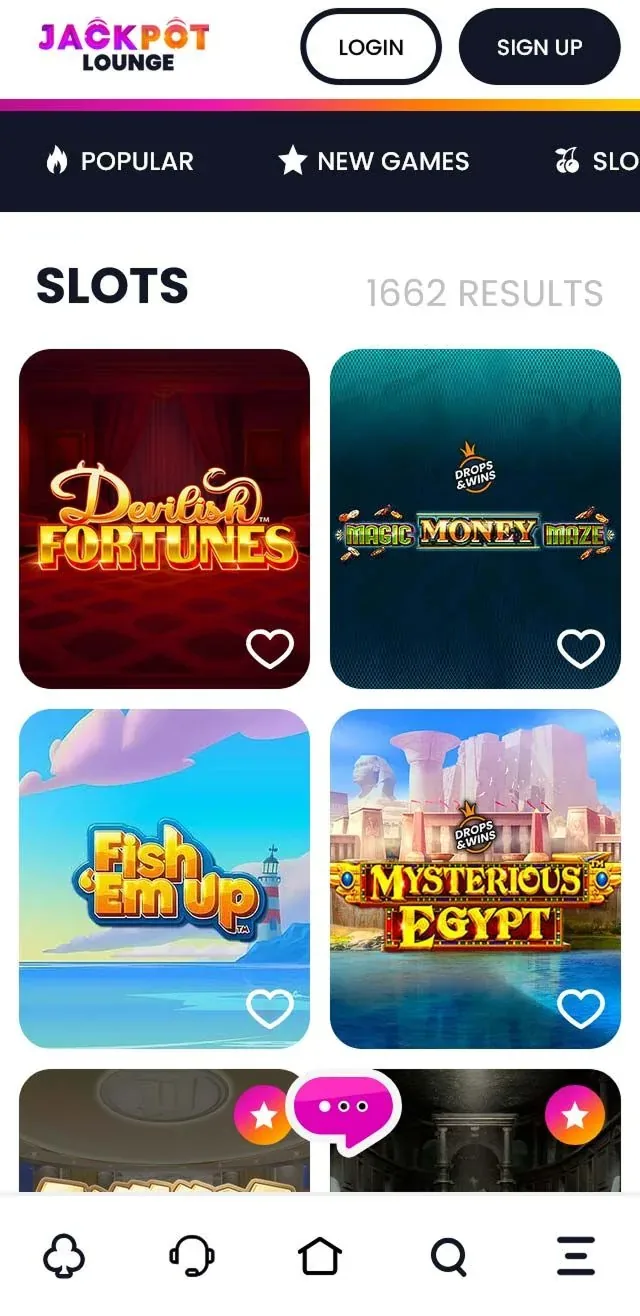
If you’re searching for a Jackpot Lounge mobile app, the key point is simple: Jackpot Lounge runs as a mobile-first, reactive website, so you can play on phone or tablet without installing a separate app.
Mobile-first access
Start with the official mobile site and confirm that the header, navigation, search, and account buttons feel usable on your screen size. That is the setup you will use for games, cashier checks, and support.
Because no separate APK is needed, the safest path is to keep the official site in your browser or add it to the Home Screen.
What you can use on mobile (NZ)
| Mobile option | What it means | What to do |
|---|---|---|
| Mobile website (recommended) | Full casino access in your browser | Open Jackpot Lounge in Safari/Chrome and sign in |
| Home Screen shortcut (app-like) | One-tap icon that opens the site full-screen | Add to Home Screen (iOS/Android steps below) |
| APK download | Not needed because there’s no separate app | Avoid “Jackpot Lounge APK” files from third-party sites |
How to “download” Jackpot Lounge on iPhone (no App Store needed)
Since it’s web-based, the best iOS setup is a Home Screen shortcut:
- Open Safari and go to the official Jackpot Lounge website.
- Tap Share (square with arrow).
- Choose Add to Home Screen.
- Name it (e.g., “Jackpot Lounge”) and tap Add.
Result: an icon on your Home Screen that launches Jackpot Lounge quickly in a clean, app-like view.
How to “download” Jackpot Lounge on Android (no Google Play needed)
- Open Chrome and go to the official Jackpot Lounge website.
- Tap the three dots menu.
- Select Add to Home screen (or Install app if your device shows it for web apps).
- Confirm.
Make the Home Screen shortcut feel like a real app
Use these settings to get the smoothest “app-like” experience:
- Open from the icon, not from a bookmark. The Home Screen icon typically loads in a cleaner view.
- Keep one main browser. If you switch between Safari/Chrome and other browsers, saved sessions can conflict.
- Allow site permissions when prompted. Sound, notifications (if offered), and pop-ups can affect gameplay windows and cashier pages.
- Update iOS/Android and your browser. New versions usually improve WebGL performance and reduce crashes in slot games.
- If the address bar keeps showing: delete the shortcut and add it again from the official site, then always open via the icon.
App-like casino sessions
The Home Screen shortcut is useful because it keeps the route simple: tap the icon, sign in, open the lobby, then move to cashier or support when needed.
If a session expires, reopen from the shortcut rather than keeping many old tabs active.
Why there’s no official Jackpot Lounge APK
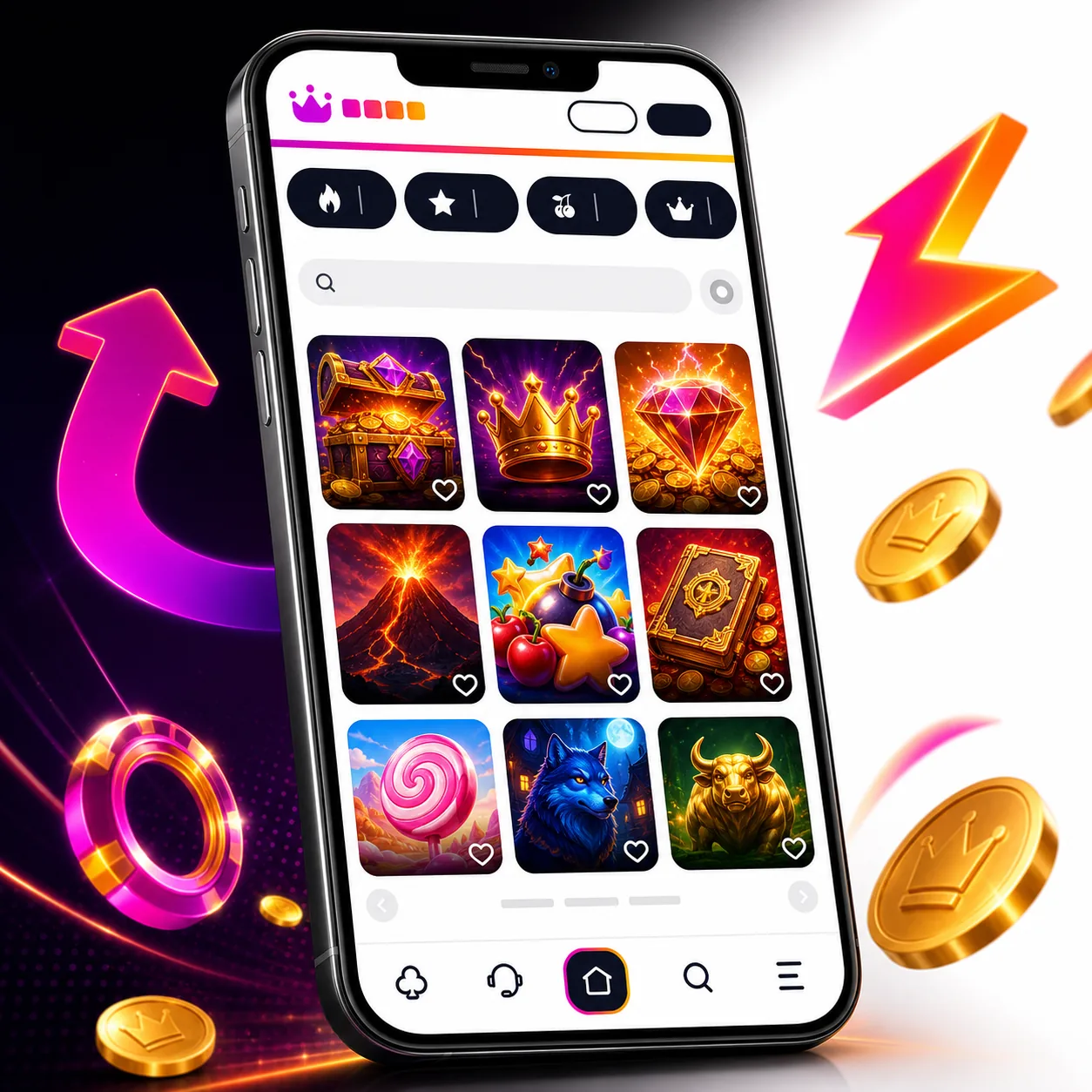
Jackpot Lounge describes its product as a reactive website built to work across devices without needing a separate app. That means:
- No App Store / Google Play app is required.
- An APK installer is not necessary for access.
- “APK” files found on third-party sites are high-risk (spoofed apps, malware, phishing).
Payments on mobile in New Zealand (deposit & withdrawal basics)
You can usually manage money from your phone the same way as on desktop:
- Tap Cashier / Banking in the menu.
- Choose Deposit or Withdraw.
- Select a method available to your account (you’ll see limits, fees, and processing notes inside the cashier).
- Confirm the amount, then follow the on-screen steps.
Mobile protection basics:
- Stick to your own device and don’t touch public wifi for transactions—seriously, it’s not worth the risk.
- Always verify the site address before typing card or banking details in.
- Payout delayed? Probably either waiting on verification documents or you haven’t finished the bonus requirements.
Mobile game browsing
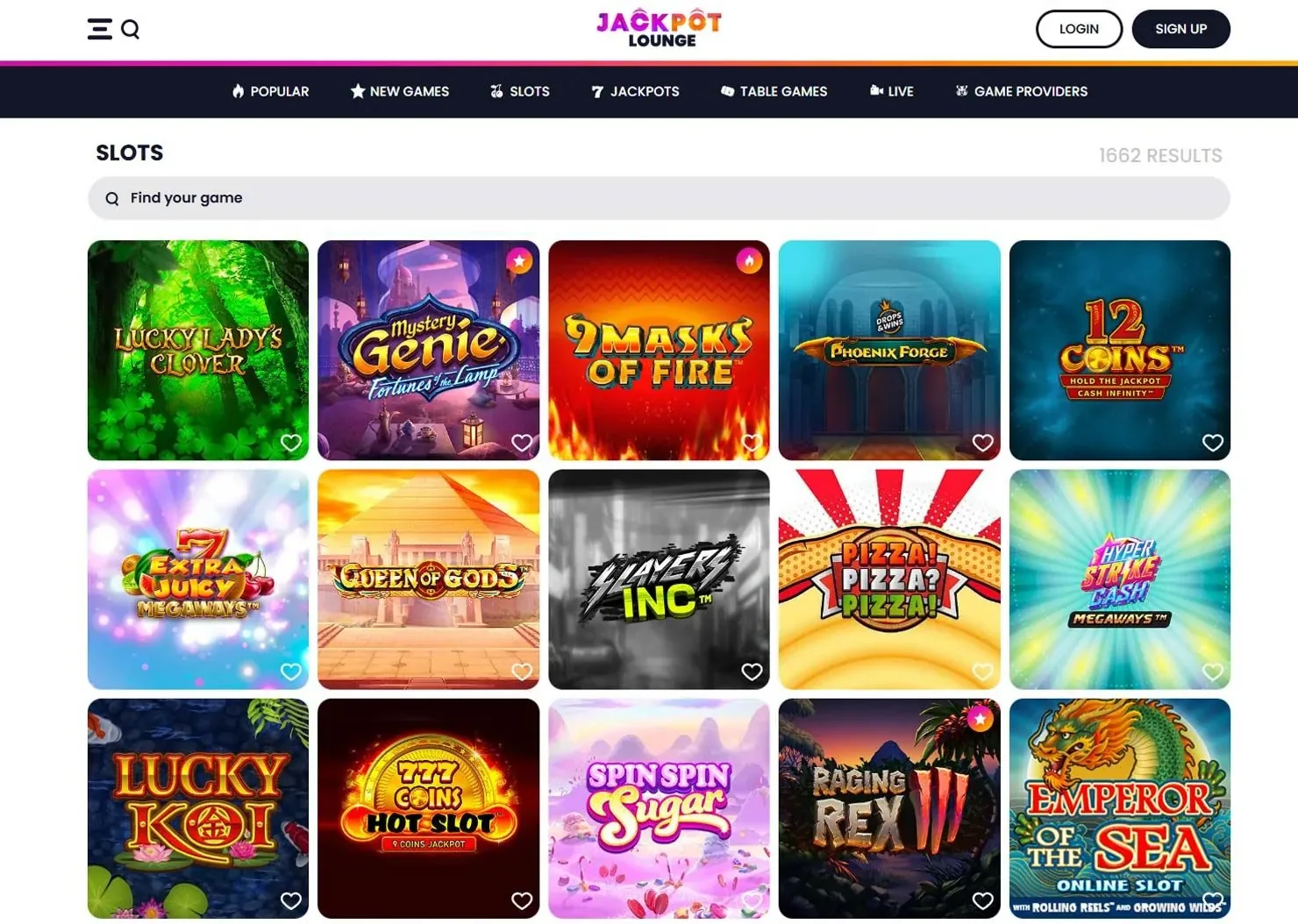
Use the mobile lobby to test actual play conditions before depositing more: category swiping, game tile loading, support access, and whether the cashier remains readable on a smaller screen.
If the lobby feels slow, clear the browser cache and relaunch from the Home Screen icon before starting a longer session.
Mobile troubleshooting checklist
If something doesn’t work, run this quick list:
- Games won’t load: switch Wi-Fi/mobile data → refresh → clear browser cache → reopen from the lobby.
- Login issues: confirm caps lock → reset password → try “private/incognito” to rule out cookies.
- Frozen screen or session timeout: close the tab/app switcher → reopen the site → log in again.
- No sound: raise media volume → enable site sound permissions → toggle mute inside the game.
- Cashier errors: disable VPN/proxy → try another connection → retry after a few minutes.
- Still stuck: contact support and include your device model, OS version, browser, and a screenshot of the error.
Mobile tips for a smoother experience
- Use an updated browser (Safari/Chrome) for better game performance.
- Enable biometric security on your phone and use a strong password for your casino login.
- Prefer secure connections when using cashier functions.
Jackpot Lounge Mobile App FAQ
Does Jackpot Lounge have a mobile app?
Jackpot Lounge is designed as a mobile-ready website, so you can play on mobile without a separate app.
Can I download a Jackpot Lounge APK on Android?
An APK isn’t needed because there’s no separate official app. Avoid third-party “Jackpot Lounge APK” downloads.
How do I put Jackpot Lounge on my Home Screen?
On iPhone: Safari → Share → Add to Home Screen. On Android: Chrome → menu → Add to Home screen.
Can I deposit and withdraw on mobile in New Zealand?
In most cases, yes. Use the Cashier/Banking menu on mobile to deposit or request withdrawals with the methods available in your account.
What if games don’t load on my phone?
Change your wifi or connection, hit refresh, clear that cache out, then go back to the lobby and launch it fresh. Still stuffed? Try Chrome instead of whatever you’re using and message support about it.
How do I keep my account secure on mobile?
Use a strong password, enable biometrics/2FA when available, avoid public Wi-Fi for payments, and use only the official site.